How to Add Multiline Labels in Graphviz
In a quoted DOT label, use \n for a centered line break or \l to end a left-aligned line. For mixed formatting, use an HTML-like label with <BR/>.
Use a quoted multiline label
digraph Status {
  node [shape=box];
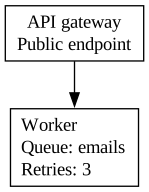
  api [label="API gateway\nPublic endpoint"];
  worker [label="Worker\lQueue: emails\lRetries: 3\l"];
  api -> worker;
}
The API label is centered on two lines. Each worker line ends with \l, including the last one, so the three lines are left-aligned.
Mix bold text with line breaks
digraph Status {
node [shape=box];
api [label=<<B>API gateway</B><BR/>Public endpoint>];
worker [label=<Worker<BR/>Queue: emails & alerts>];
api -> worker;
}
The gateway heading is bold. The worker label uses an escaped ampersand because HTML-like labels follow different escaping rules from quoted DOT strings.
What to watch for
Paste these examples directly into the DOT editor. If your application generates DOT inside a JavaScript or Python string, that host language may need an additional backslash to preserve the DOT escape. Inspect the generated DOT before debugging the renderer.
HTML-like labels support a defined subset of tags, not arbitrary webpage HTML. Keep the outer angle-bracket delimiter around the whole label and escape literal ampersands as &. A backslash-n inside an HTML-like label is not the same mechanism as <BR/>.
Related guides
- How to Align Graphviz Nodes on the Same Rank
- How to Draw Edges Between Graphviz Clusters
- Graphviz cheatsheet
Reference: Official documentation.